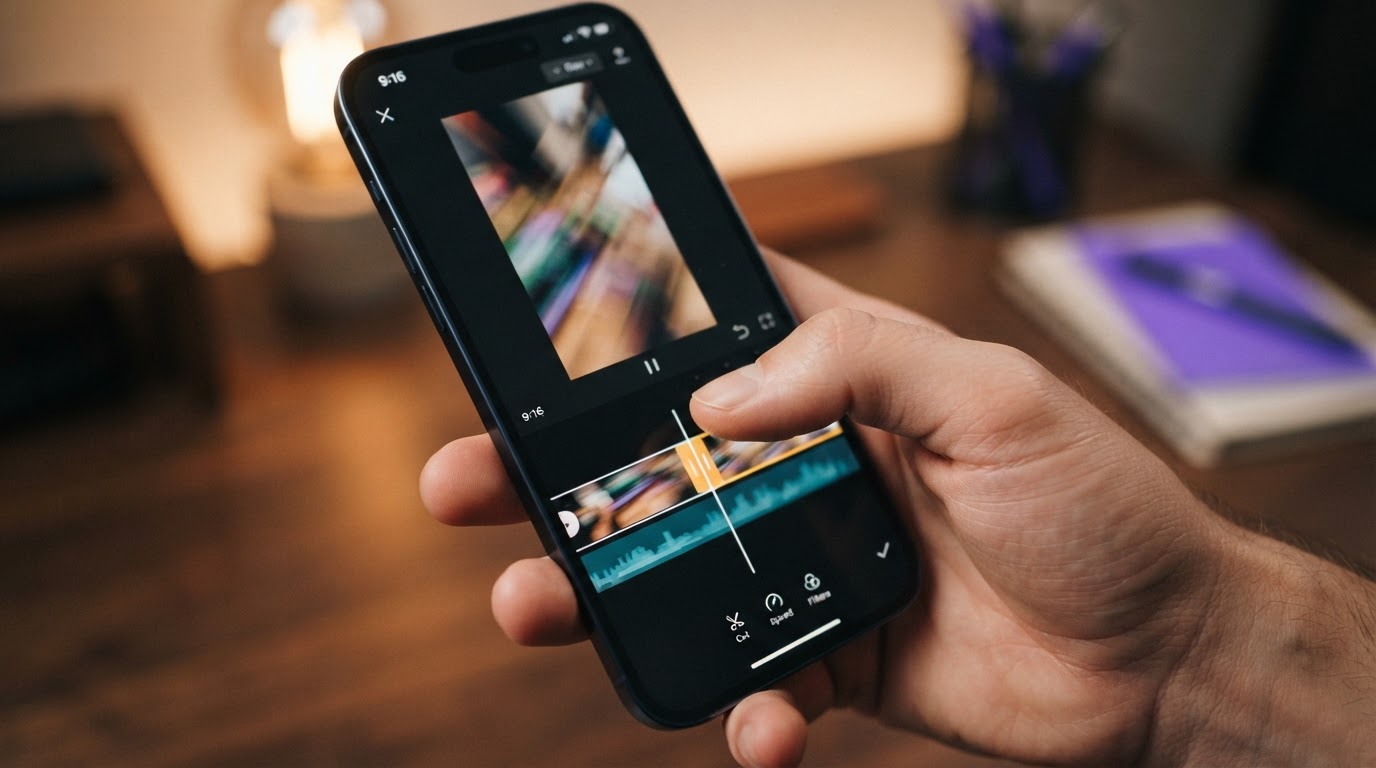
The honest answer is that there is no single best video editor for every person. But there is a best one for your situation, and this guide will help you find it in the next few minutes.
Short videos have their own rules. A clip needs to grab attention in the first second or two, stay tight, and look clean on a phone screen. That means the tool you pick matters, but so does the workflow behind it. Choosing a powerful editor you never open is worse than using a simple one you actually use every week.
Here is what this guide covers:
Table of Contents
- What makes a video editor good for short videos
- The most common options compared
- What kind of short videos are you making?
- What about AI and UGC-style ads?
- How to pick the right one for your situation
- A simple recommendation
What Makes a Video Editor Good for Short Videos
Most video editor comparisons treat all editing the same. They are not. Editing a ten-minute documentary is a completely different job than cutting a fifteen-second TikTok or a thirty-second Reels ad.
For short videos, the things that actually matter are:
Vertical format support. TikTok, Reels, and YouTube Shorts all use a 9:16 ratio. If the editor does not handle vertical video without a fight, you will waste time every session re-cropping and fixing black bars.
Fast trimming. Short videos live or die by pacing. You need to cut pauses, tighten transitions, and trim the fat in seconds, not minutes. An editor that makes trimming slow is painful to use for this format.
Text overlays and captions. Short-form content almost always has on-screen text. Auto-captions, styled text, and quick overlay tools are not nice-to-haves anymore.
Mobile or browser access. Many short video creators work on their phone or tablet. Desktop-only tools add friction when the clips live on a phone.
Export speed. If rendering takes ten minutes for a thirty-second clip, that becomes a real cost when you are making multiple versions of an ad.
Templates. Starting from scratch every time kills momentum. Good short video editors let you save a format and reuse it.
The tools below are evaluated on these factors, not on whether they can handle multicam shoots or color grading workflows.
The Most Common Options Compared
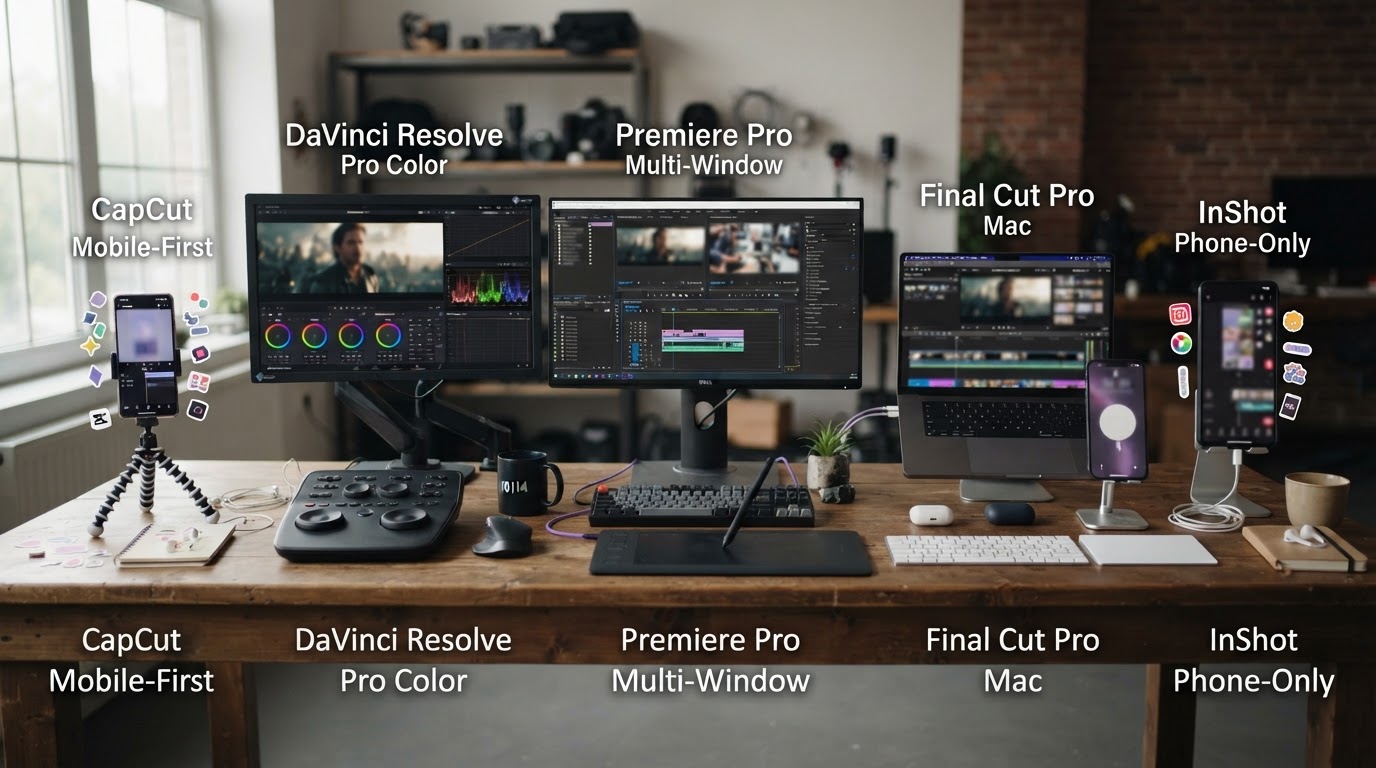
Here is a plain look at the editors most creators and marketers reach for when making short videos.
CapCut
CapCut is free and has become one of the most popular tools for short-form content. It is made by the same company behind TikTok, which means it is built with that format in mind.
What it does well: Vertical editing, auto-captions, trending templates, text animations, and a huge library of effects. The mobile app is fast and easy to learn. The browser version works reasonably well too.
Where it falls short: If you are making content for a business and want to keep clips organized across campaigns, CapCut is not built for that. Each project lives on its own. There is no library system for reusing hooks, demos, or ad structures.
Good for: Solo creators, beginners, people who want to put something together quickly without spending money.
DaVinci Resolve
DaVinci Resolve is free and genuinely powerful. It is used by professional editors and colorists.
What it does well: Color grading, audio mixing, precision trimming, and a full professional feature set. The free version is not crippled in any meaningful way.
Where it falls short: The learning curve is steep. It is built for desktop, and it is not designed with short-form content workflows in mind. There are no auto-captions, no vertical-first templates, and no quick export presets for TikTok or Reels built into the default interface.
Good for: Video editors who already know their way around a timeline and want professional results. Not ideal as a starting point for short-form content creators.
Adobe Premiere Pro
Premiere Pro is the industry standard for professional video editing.
What it does well: Everything. It integrates with the rest of Adobe Creative Cloud, handles any format, and has a massive ecosystem of plugins and tutorials.
Where it falls short: It costs money every month, it takes time to learn, and it is overkill for most short-form content needs. If you are making fifteen-second TikTok ads, you do not need what Premiere Pro offers.
Good for: Professional editors, agencies, or anyone already in the Adobe ecosystem who needs full control.
Final Cut Pro
Final Cut Pro is Apple's professional editor. It is a one-time purchase rather than a subscription, which some people prefer.
What it does well: Fast rendering, clean interface, tight integration with macOS and iPhone footage. The magnetic timeline makes trimming feel smooth.
Where it falls short: It is Mac-only. There is no mobile version. Short-form templates exist but are not as rich as CapCut's for the vertical format.
Good for: Mac users who want a professional tool without a monthly fee.
InShot
InShot is a mobile app designed specifically for vertical short-form video.
What it does well: Simple trimming, text overlays, filters, music, and transitions, all from a phone. It gets you from raw footage to a finished video fast.
Where it falls short: Limited compared to CapCut. Less template variety and fewer advanced features.
Good for: Mobile-first creators who want something even simpler than CapCut.
CapCut vs DaVinci vs Premiere: Quick Comparison
| Editor | Best for | Price | Vertical support | Learning curve |
|---|---|---|---|---|
| CapCut | Short-form creators, beginners | Free | Native | Low |
| DaVinci Resolve | Professional editors | Free / paid | Manual setup | High |
| Adobe Premiere Pro | Professional editors, agencies | Monthly subscription | Manual setup | High |
| Final Cut Pro | Mac-based professional editing | One-time fee | Manual setup | Medium |
| InShot | Mobile-only simple edits | Free / paid | Native | Very low |
What Kind of Short Videos Are You Making?
The right editor changes completely depending on what you are making. Here are the three most common situations.
Situation 1: Personal or creator content
You are making Reels, Shorts, or TikToks for an audience you are building. You film on your phone. You want to edit quickly and post often.
Best fit: CapCut. It is free, vertical-native, has auto-captions, and has a library of effects that match what is trending. The mobile app is genuinely good.
Situation 2: Professional video production
You edit for clients, produce branded content, or work in a production environment. Quality and control matter more than speed.
Best fit: DaVinci Resolve if you want free and professional. Premiere Pro if you are already in the Adobe ecosystem. Final Cut Pro if you are on Mac and prefer a one-time purchase.
Situation 3: App marketing and UGC-style ads
You are an indie app builder or mobile marketer making TikTok and Reels ads. You have product demo footage and you want to pair it with hook clips and ship multiple ad versions without rebuilding the same timeline every time.
This is where general video editors start to fall short, and it is worth understanding why.
What About AI and UGC-Style Ads?
This is the part most video editor comparison posts skip.
If you are building an app and trying to grow it through short-form ads on TikTok or Instagram Reels, your real problem is not usually "which editor has the best timeline." It is that you need to produce a lot of short ads, keep your hook clips and product demos organized, and do it repeatedly without it becoming a second full-time job.
A traditional video editor gives you a blank timeline and expects you to drag clips around manually every single time. That works fine if you are making one polished video. It breaks down when you need to ship ten variations of the same ad in a week.
This is why purpose-built tools have appeared for this specific workflow.
What a short-form ad workflow actually needs:
- A place to store hook clips and demos so they do not live in random folders
- A way to pair hooks with demos quickly without rebuilding the structure from scratch
- Quality checks before you post (so you catch weak openers or bad pacing before wasting ad spend)
- Templates so the second batch does not start from zero
- A way to generate more UGC-style footage when the clip library runs dry
If this sounds like your situation, you should be looking at tools built for this workflow, not just general video editors.
For understanding what kinds of AI tools now create UGC-style video at scale, this post on what is the AI that creates UGC videos is worth reading. And if you want a broader look at the format itself, the pros and cons of short-form video post covers what you are working with.
How to Make Realistic UGC Videos
UGC stands for user-generated content. In the context of ads, it means video that looks like it was made by a real person rather than a brand. These videos tend to outperform polished brand ads on TikTok and Reels because they feel native to the feed.
A short-form UGC video typically follows a simple structure: a hook that grabs attention in the first two seconds, some social proof or relatable moment, and then a product reveal or demo. The whole thing is usually under thirty seconds.
Making realistic UGC videos comes down to a few things:
The hook has to be real. A stiff, scripted opener kills credibility immediately. The best hooks feel like someone started talking in the middle of a thought.
The visuals have to look casual. Handheld camera movement, natural lighting, and real-looking environments help. Overly polished production makes it feel like an ad too quickly.
The pacing has to match the platform. TikTok moves fast. If a clip has any pause longer than a second, the viewer is already gone.
If you do not have a real UGC creator filming content for you, AI tools can now generate footage that looks plausible. This is not perfect, but it fills gaps when you need more hook clips and do not want to wait for a new shoot.
For a full guide on the process, how to create UGC videos with AI walks through the workflow step by step.
If you need a library of real human UGC ads to study what actually works, DansUGC keeps a library of real-world examples that can help you understand what strong hooks look like before you build your own.
How Much Do UGC Creators Make Per Video?
This comes up often because some indie builders consider hiring a UGC creator rather than making content themselves.
Rates vary a lot, but here is a rough picture:
- Beginner UGC creators: $50 to $150 per video
- Mid-level creators with a portfolio: $150 to $500 per video
- Experienced creators with proven ad performance: $500 to $1,500 or more per video
These rates do not always include usage rights, revisions, or exclusivity. If you are running paid ads, you may also pay separately for the right to use the footage in ads rather than just organic posts.
For indie app builders running lean, these costs add up fast, especially if you need multiple variations for testing. That is a big reason AI-assisted UGC tools have grown, as they let you generate new hook clips without paying a creator for every variation.
ClipStitchr: Built for the App Marketing Workflow
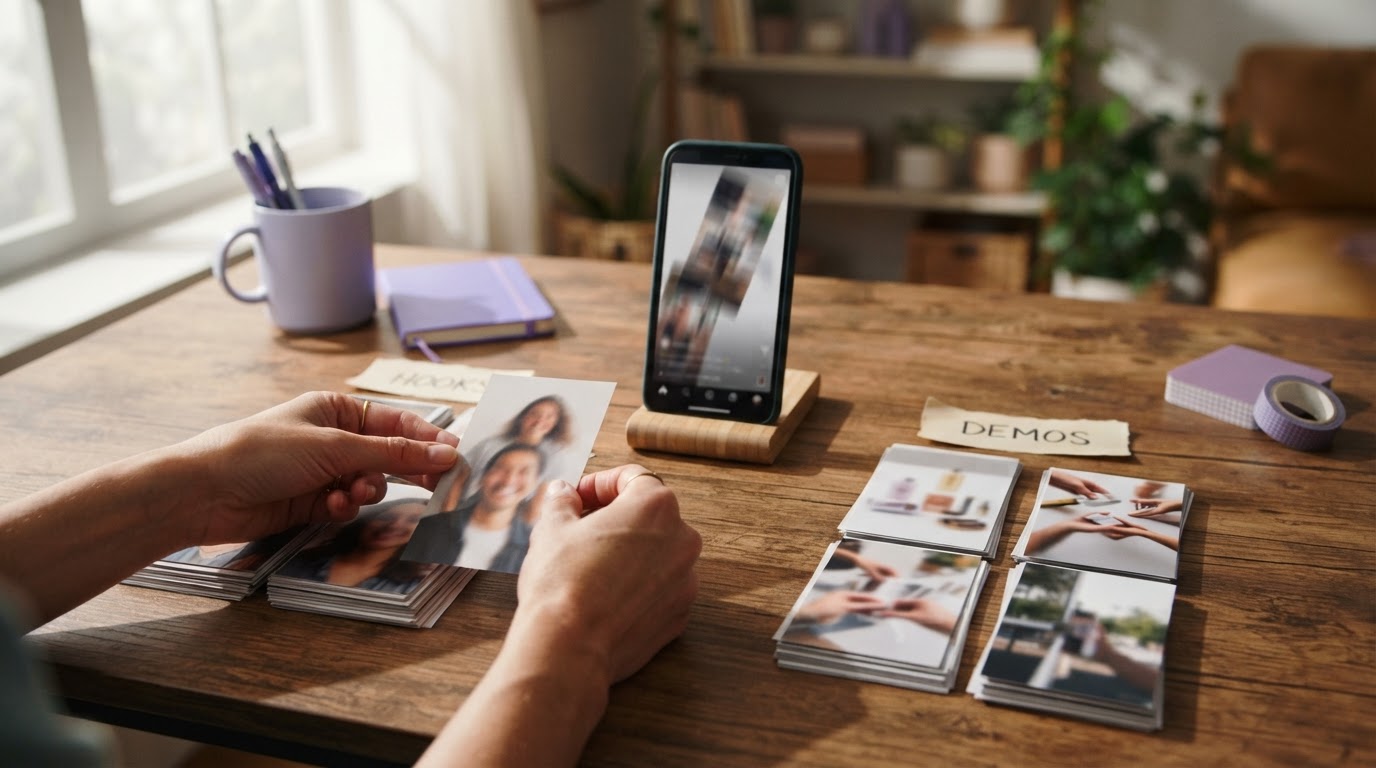
For indie app builders and mobile marketers specifically, a general video editor is often the wrong tool, not because it is bad but because it was designed for a different job.
ClipStitchr is built around the exact workflow that short-form app marketers deal with every week. You upload hook and UGC clips and a product demo once. The tool pairs them together and produces finished vertical ads you can review, without manually dragging clips around on a timeline every session.
The library keeps clips, demos, drafts, and finished ads in one place so nothing gets lost between sessions. Clip and Stitch scores give you a read on weak openers, slow pacing, and unclear moments before anything goes live. Templates save the structure from a finished ad so the next batch does not start from zero.
When the clip library runs thin, tools called Clipr and Swapr can generate new hook and UGC footage using avatar photos. So you are not stuck waiting on another shoot to keep producing ads.
This is a different category than CapCut or Premiere. It is not a general editor. It is a short-form ad production system designed around the repetitive parts of the workflow that eat time every week.
A practical example of what this looks like in practice: the Guppy fitness app growth case study shows how an indie app used this kind of workflow to keep producing short-form ads without a full production team.
Once ads are finished and ready to post, ClipStitchr connects to Post-Bridge for scheduling and basic analytics, which brings results back to guide the next version. That closes the loop between making ads and learning from them without switching between a dozen different tools.
Comparing the Options Side by Side
Here is a broader look at where each type of tool fits:
| Tool type | Example tools | Good for | Not great for |
|---|---|---|---|
| Mobile short-form editor | CapCut, InShot | Creators, fast personal content | Organized ad production at scale |
| Professional desktop editor | Premiere Pro, Final Cut, DaVinci | Professional video work | Quick short-form ad workflows |
| Short-form ad workflow tools | ClipStitchr | App marketers, indie builders making TikTok/Reels ads | General content creation or professional film work |
| AI avatar video tools | Clipr, Swapr (inside ClipStitchr) | Generating hook footage when clip library is thin | Replacing real UGC entirely |
How to Pick the Right One for Your Situation
Run through these three questions quickly:
Are you a solo creator making content for your own audience? Start with CapCut. It is free, it is vertical-native, and you can learn it in a few hours. There is no reason to pay for something more complex until you outgrow it.
Are you a professional video editor working with clients or producing branded content? DaVinci Resolve is the best free option if you want professional-grade tools without a subscription. Premiere Pro or Final Cut Pro if you need the full ecosystem or are already invested in one of those workflows.
Are you an indie app builder or mobile marketer trying to produce TikTok and Reels ads regularly without spending all week editing? A general video editor will hold you back. The repetitive work of pairing hooks with demos, organizing clips, checking quality, and starting fresh every batch is exactly what purpose-built tools like ClipStitchr handle. The timeline editing skills are mostly irrelevant to the actual bottleneck, which is the workflow around the editing, not the editing itself.
For anyone in that third category, it is also worth reading about short-form video platforms beyond TikTok, because the tools you use should work across platforms, not just one.
A Simple Recommendation
For most people asking this question, here is the short version:
Pick CapCut if you are a creator who wants to move fast and spend nothing.
Pick DaVinci Resolve if you want professional tools and do not mind a learning curve.
Pick ClipStitchr if you are an app builder or mobile marketer who needs to produce short-form ads regularly without rebuilding the same workflow every single week.
The mistake most people make is picking the most powerful general editor they can find and then wondering why content production still feels slow. Power is not the problem. Workflow is.
A tool that handles the repetitive, organizational, and quality-checking parts of short-form ad production will save more time in a month than a better timeline editor ever could.
If the third option sounds like your situation, ClipStitchr has a free 14-day trial with no credit card required. The fastest way to know if it removes the part of the process you keep avoiding is to run one batch and see.